
Devices & operating systems
Identify which home screen is active
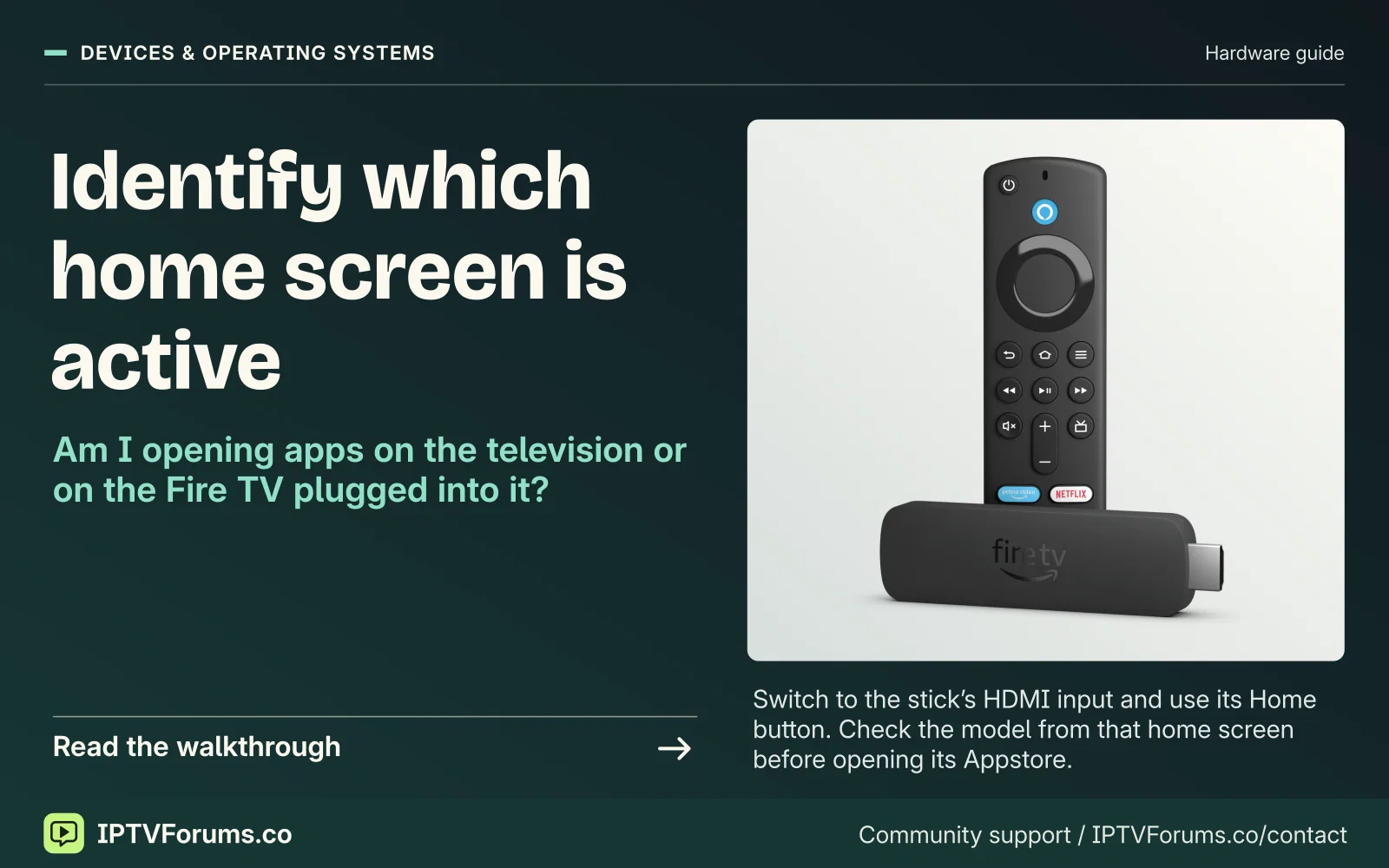
Switch to the stick’s HDMI input and use its Home button. Check the model from that home screen before opening its Appstore.
Guides
Find the Fire TV model and Appstore listing, enter the service’s supported source type, and prove one working channel before changing playback settings.
Devices & operating systems
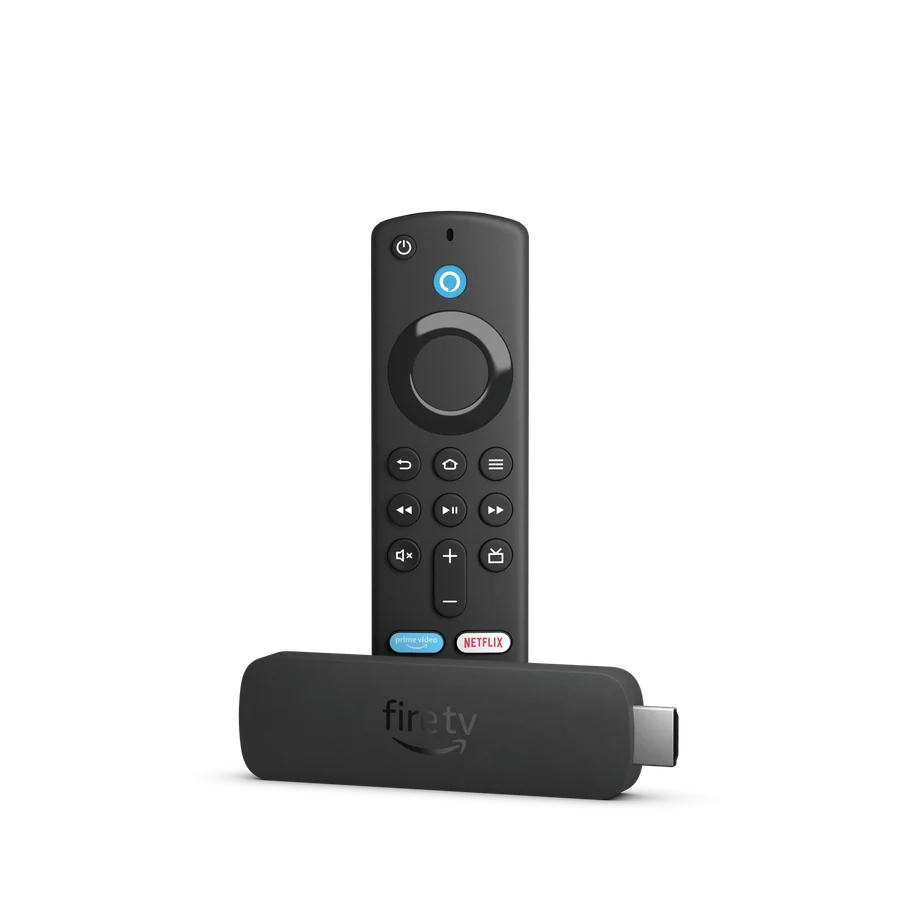
Switch to the stick’s HDMI input and use its Home button. Check the model from that home screen before opening its Appstore.
Open Settings, then My Fire TV or Device & Software, then About. Record the device name and software version. If the label just says Fire TV Stick 4K, match its generation or hardware identifier in Amazon’s comparison table. Amazon sells similar-looking players with different platform and storage choices. The 2025 Fire TV Stick 4K Select, for example, is listed with Vega OS, while the second-generation Fire TV Stick 4K Max is listed as Fire OS 8.
Search the Amazon Appstore from that TV and open the listing for the specific player and publisher named by your service. Verify the seller’s instructions against your model, especially when those instructions describe installing an Android package or mention a tool that only exists on another Fire TV platform. Device and account region both matter for what the store offers.
An official service app may ask you to sign in or pair the device. A third-party player might ask for a playlist, an account with a server address or a separately registered portal. Those fields describe distinct setup paths. Use the route the service names and that the player actually supports. On a remote keyboard, it is easy to introduce a space at the end of an address or swap two characters in a case-sensitive password.
If a setup form has no field for the details you received, go back to the service’s device instructions. Sending a portal address to a playlist import field can produce an unhelpful load error even though the account itself is fine.
| Setup screen | What to check before saving |
|---|---|
| Provider sign-in or activation | Use the publisher’s app and follow the service’s pairing process. |
| Playlist import | Check that the service supplied an authorized playlist for this player. |
| Account and server fields | Enter the exact endpoint and account values in their matching fields. |
| Programme guide field | Only add a separate guide if the provider gives you one. |
If the player never appears in the store, use the model and region to ask the publisher about compatibility. If it opens but rejects the account, check the service activation and exact endpoint. If a picture starts and then stalls, go to Settings → Network and inspect the Fire TV connection. Amazon’s Network Status tool separates the device-to-router leg from the broader internet connection and may show an on-device speed test.
Keep the original symptom in your notes. A clean reinstall may remove the source settings you were trying to diagnose. If the guide is empty while video works, fix the guide source or channel match first. The video working is a useful result worth keeping.
Start on the screen where the player opens. If a stick is plugged into a television that also has its own store, the two menus can look similar from across the room. Switch to the stick’s HDMI input and press Home on its remote before reading the device information. A television running built-in Fire TV software is a third possibility. In that case the set’s hardware and software are the platform, with no separate stick to identify. Note the full model, the software version and the input where the app appears. A box number, serial number or account address should stay in your own records.
Amazon’s device tables separate models that use similar names. The Fire TV Stick 4K Select from 2025 uses Vega OS, and the Fire TV Stick 4K Plus from 2025 is listed with Fire OS 8. The second-generation Fire TV Stick 4K Max has its own entry. Read the year, generation or build details against the specification table for your model. A screenshot in someone else’s setup guide can describe a different Amazon device even when the remote and packaging look familiar. The platform table can identify a software family. The listing and publisher’s notes determine whether a particular app supports it.
When Amazon’s help page and a developer table describe different software version numbers, check what each is reporting. A device support page can list a specific update, while a platform table can describe the generation or platform supported by a model. Record the version visible on your own About screen and the date of your check. Compare that with the publisher’s minimum version and compatible devices. If the model name alone is ambiguous, use more than one identifier from the settings or original label. This also makes a support question easier to answer without anyone sending their serial number through a public forum.
In a household with multiple screens, do this once for each setup. One room can use a 4K Select while another uses a Fire OS device with a similarly named app already installed. Seeing the app in the second room is a useful clue about its publisher and account requirements. It tells you little about the first room’s software. Ask the publisher for an exact listing or documented alternative that matches the model and Appstore market. That is a smaller decision than deregistering the device, moving an account or buying equipment to see what happens.
| What is on the television | Where the app actually runs | What to record |
|---|---|---|
| Separate Fire TV Stick on HDMI 1 | The stick’s Fire TV home and Appstore | Stick generation and Fire OS or Vega OS version |
| Fire TV interface built into the television | The television’s own Fire TV platform | TV model, year and Fire TV software release |
| Different smart TV with no Fire TV input selected | The television brand’s native store | Model and OS for the TV itself |
| Phone playing through its own app | The mobile device or a supported casting receiver | Phone app version, receiver model and casting support |
Search on the exact device before relying on a retailer’s label or a desktop search result. A web page can describe a player and show screenshots without establishing that your Fire TV model can install it. Look for the app’s developer name and any Works With details on the listing. Compare both with your service’s instructions. Two players with similar names can have different publishers, fees and supported source formats. If you paid for a licence elsewhere, ask whether it applies to the TV app as well as to the mobile or web version before purchasing twice.
A missing listing has several reasonable explanations. The publisher may not support your model, may have a listing for another market, or may have changed the name or removed an earlier version. Check the service’s official instructions and the publisher’s current product page for the exact platform. Where the correct listing exists on the same device, installation gives a useful baseline. Where it is absent, preserve that evidence with your model and region. A search result for a neighbouring Fire TV family is an insufficient substitute. A supported provider app, another player the service explicitly accepts, or a compatible device already in the household may be a better next step.
Treat Fire OS and Vega guidance as separate. Fire OS documentation often discusses Android API levels and Android-style packages. Amazon documents a platform-specific developer workflow for Vega. Check the publisher’s supported consumer distribution route for the Vega model and market you use. A developer build or an unofficial copy can also be missing normal store support, playback permissions or a documented update path. The practical check is the publisher’s current distribution route for your model and market.
An Amazon account, a player licence and a television subscription can require three different sign-ins. The store uses the account configured on the device. A third-party player can ask for its own activation. The service then uses its authorized account or source details. If a setup card leaves the sign-in destination unclear, check the name at the top of the screen and the official support instructions. Use the matching account in each place. Save recovery details privately before changing any account registration. A purchase receipt is useful evidence of who sold the service and what it covers.
A regular problem with TV setup is losing the starting point. Write the input name, the installed player, the app version and the source method you intend to use. Mark which menu opens when you press Home on the remote. If two remotes can control the TV, decide which one you will use for the baseline test. A setup where HDMI control is already working can make a second remote unnecessary, but that is separate from whether playback works. The quick acceptance check is being able to repeat the launch from standby without borrowing someone else’s settings or device.
Use the power and HDMI instructions for your exact model. Amazon’s support advice for devices that freeze or fail to turn on covers power, the remote and the HDMI connection. On a new stick the priority is getting a stable home screen on the correct input, then installing the app. A television USB port, HDMI extension or intermediate receiver can change the setup in ways that are difficult to notice. If you suspect a connection issue, compare an Amazon-supported power arrangement and a direct TV input. Change one of those at a time, recording the original state so you can put the room back as it was.
The remote can make small field-entry mistakes hard to see. It helps to know which fields are for an account ID, a server address, a complete authorized playlist URL or a code issued by the service. The sign-in process can change depending on the publisher. An official pairing page may want a code typed on another device. Use the instructions shown by the app and check the destination before entering anything. For a lengthy URL, a provider-supported way to transfer it privately is usually less error-prone than typing every character with the remote. A public shortener, online validator or forum attachment can expose the same information as a password.
Set aside a brief troubleshooting window before the programme you care about. Get through device startup and app launch when there is time to recover from an update. Pick a known-good authorized programme and open it from the default setup. Keep that result as the anchor for the rest of the checks. A change to colour, audio or guide mapping can wait until you have working video and a recorded baseline. This sequence also leaves time to check what will happen if someone joins from another device on the same service.
A provider app may let you enter the service account directly or pair the screen from a verified page. Follow the screen instructions for the specific app. If the TV produces a temporary pairing code, keep it off public screenshots and enter it only at the service’s named address. Confirm that the account dashboard identifies the expected device after pairing where that information is available. If the code expires, request a new one through the same verified screen. The ability to open the Amazon Appstore confirms store access and says little about the provider account state.
A playlist import takes an authorized file or URL in the format supported by the player. A service might describe a channel list and a separate schedule feed, even though both arrive as addresses. Keep the two distinct. Loading a playlist and seeing station names is a progress check. It still leaves playback and guide mapping to verify. Where a service supplies different playlist formats, use the one it documents for the player. A full URL may contain an account identifier or other private data in its path or query string. Keep it in the authorized app or the service’s support channel.
Some supported players use a server address plus separate account fields. Enter the host as documented, including any port or path only when the publisher expects it in that field. Watch for a copied space or an address entered into the wrong box. If the provider sent a general account portal, ask for the exact endpoint your player expects. A form expecting separate fields may show a load or authentication error for a perfectly valid address placed in the wrong field. One correction and one controlled retry are usually more informative than trying several combinations at once.
A portal-based setup can involve registration with the service and restrictions tied to a device. Check whether your exact player and subscription permit that route, and whether a change of device needs a transfer from the provider. The television’s general network address and the identifier a provider calls for can be different things. Confirm the field with the provider and keep device identifiers private. A short message stating the player model and which supported registration step failed gives the service enough to identify its own process. Keep the approved setup details separate from the symptoms you can post in public.
For the first pass, use a station or programme you can identify by name and time. Open it with the remote the viewer will actually use. Observe how long it takes to reach the first picture and whether the sound begins at the expected level. Watch long enough to pass through a normal change in the programme, then return to the channel list and open the same feed again. A result you can repeat makes it easier to spot a change introduced by optional picture, audio or network settings. Take a short note of the state you can return to.
If the household relies on subtitles or more than one language, check a programme for which the provider lists those tracks. Test one choice at a time. Follow the setting through a channel change and a restart if the viewer expects it to be remembered. A working subtitle toggle on a programme that offers captions may be good evidence for that app. Another programme can carry a different track, and a version of the player on a different device may behave differently. When the viewer needs a particular language or caption mode, put the exact selected programme and app version in the acceptance notes.
Next open the programme grid for the same live station and compare the current title against the broadcaster’s schedule. Keep the time zone in mind. A valid video feed with no visible guide can still meet a basic watch-live task. If a full guide matters, investigate its identity and time separately. Test catch-up only if the service includes it on that plan and station. Choose a programme known to be in the allowed window. A playable live feed and a guide label are separate from the authorization needed to start an earlier programme.
Finally test how the box behaves after standby. Put it to sleep in the way the household normally does and return to the programme after a short wait. Note whether the app resumes, returns to the home screen or asks to sign in again. This is a realistic way to discover a common recurring issue before the device is installed in another room. If a second screen is part of the setup, test it under the documented plan allowance and look for what happens to the first screen when the second starts. A result that only occurs when sessions overlap deserves a check of account rules before a network reset.
If the TV says it has lost the input, test the display and power route. Note whether the Fire TV home screen also disappears or whether only one programme is affected. When the player’s controls still render over a blank picture, try a second permitted title in the same app. When every screen flickers, compare the correct direct input and power arrangement before investigating the subscription. A nearby working HDMI device can be a useful control, but changing the port and display mode at the same time makes it hard to tell which change mattered.
If the player opens and fails immediately on sign-in, separate the store, player licence and service accounts. Use the exact error text and which screen displayed it. Ask the service about activation and supported sign-in method if the form values are correct. A lockout after repeated guesses can introduce a new failure unrelated to the starting issue. Give the official support channel your model, player version and the step that failed. They should not need you to paste a complete address into a public forum to decide which party owns that login.
If video plays briefly and then stops, keep the same programme and watch what else changes. A spinner and advancing audio can describe a different problem from the Fire TV returning to Home. Compare a lower rendition if the app offers one, then test a known-good authorized app on the same device. Amazon’s Network Status tool can help distinguish the device’s local Wi-Fi connection from a broader internet problem. The stick’s position behind the television can give it a different connection from a device near the router. Use the stick’s own results or supported Ethernet comparison when feasible.
If only the guide is wrong, resist the temptation to solve it in the video settings. Confirm the feed, intended regional edition and current programme. If all schedules are displaced by an equal amount, note the TV’s time zone and whether any app offset is in use. If one station has a schedule for a different city, its guide association is the first candidate. On a provider app with no separate guide import, the relevant support evidence is the selected station, expected programme, local time and screenshot of the wrong listing. Keeping video working gives the support team an independent result.
| What you see | First check on the device | Who can usually clarify it |
|---|---|---|
| Home screen is stable but the app is unavailable in the store | Model, OS, region and publisher listing | Player publisher or service’s device support |
| Activation screen rejects the pairing code | Official pairing path and expiry | Service or player that issued the code |
| Television says no signal across screens | HDMI input, power and direct connection | Device or display support |
| Several apps stall on the same Fire TV | On-device network status and a wired comparison where supported | Home network or broadband support |
| Only one live feed stalls in a working app | Exact feed, time and a nearby station as control | The service delivering that feed |
Begin with the step whose impact you understand. If a single app stops responding, close and reopen it before clearing anything. A normal device restart can reset a temporary process state and lets you compare a fresh session with a resumed one. Record the earlier error before restarting. When the manufacturer’s support instructions suggest a cache or data action, treat those as distinct controls. Clearing cached files can remove temporary material. Clearing data can reset local app state, including settings or sign-in, depending on the app. Verify how to recover the source and licence before choosing that option.
Make a private recovery note for one player. Record the publisher and listing, the app version and device model, which sign-in method it uses, and the date the setup worked. If the service allows an export of non-sensitive preferences, keep it apart from any credentials. Save any app licence documentation in your private account records. Keep logins in a password manager or an equivalent secure place, and crop account details from support screenshots. This makes an ordinary reinstall more manageable and allows you to stop before a factory reset that would remove unrelated apps, account registration or settings.
After an update, test the same room and programme before moving the box. Keep a short record of what changed, including whether the update concerned Fire TV software, the player or the service. An operating-system update can coincide with a provider feed change or a Wi-Fi problem. Recording the timestamp and comparing a known-good programme helps avoid treating coincidence as a diagnosis. If the updated app seems to have disappeared, verify the listing on the device. Ask the publisher about an officially supported version or alternative instead of copying another household’s package.
One TV often belongs to the rest of the household, too. If an input or display setting affects other viewers, write down the previous value and choose a quiet time for changes. Leave other rooms and apps alone until one controlled comparison identifies a reason to change them. This matters most with receiver audio, shared viewing plans and network settings. The quick recovery goal is being able to return to an app that worked earlier, on the same screen, with its known setup still available. That option makes it much easier to judge the next step fairly.
In the first example, a viewer cannot find the player named on a provider’s welcome sheet. They verify that the stick is the 2025 4K Select and that the app’s publisher lists a Fire OS route without a Vega entry for that device. They ask for an Appstore listing specifically supported on their model and region, and offer the current About-screen version privately if needed. The issue is now a compatibility question. Changing the router, updating programme guide data or adjusting the television’s HDMI colour settings would add no evidence about the app listing.
In the second example, an authorized news programme works on the Fire TV but the app on a second screen takes over the service immediately. The viewer can repeat the event by closing the second app and reopening the first. They save the timestamp, both device models and the result of running the first device alone. The next step is to confirm the plan’s active-session rule and release process. The repeatable one-screen baseline helps support distinguish a connection allowance from independent playback trouble on either device.
In the third example, the player starts several live stations normally but one event repeatedly stops shortly after the pre-show begins. The Fire TV home screen remains available, and an official broadcaster programme of similar quality keeps playing in another authorized app on the same box. The viewer records the exact event, feed label, local time, version and what the playback controls show at the stop. They keep the box working while the provider investigates. The provider can use the event, clock and playback evidence to investigate the upstream feed.
Leave a brief note by the television or in the household’s device instructions. It can say which input opens the Fire TV, which icon starts the player, and where the guide and subtitles are. Keep the sign-in details out of that note. Show the regular viewer how to return from the player to the channel list and what to do if a programme is unavailable. Someone else should be able to identify the right app and know where to get official help without guessing which remote or account is involved.
When the device is shared, decide whether to use profiles, purchase controls or a PIN based on the actual app and account settings. Check the official guidance from the party whose purchase or content you want to control. An account-level restriction may differ from a setting applied to one player. If the household needs both, verify them separately. The same principle applies to app updates and standby behavior. Keep the setting that solves the actual task and the note needed to reverse it. That is a maintainable Fire TV setup, even when a provider changes its menu a few months later.
Start with the distinction between the Fire TV menu and the video. If both briefly disappear when you open a title but the television’s input label comes back, note whether the display is changing modes. A short blank during a change to a different frame rate or dynamic range can look like a video interruption. A repeating black screen during one steady programme deserves a different test. Check whether sound continues, whether the TV’s own volume overlay appears, and whether the Fire TV player controls can still be opened. Each observation puts the fault on a narrower part of the signal path without asking you to diagnose it from a single blink.
A receiver or soundbar in the HDMI chain adds another place where display and audio modes are negotiated. To isolate that path, note which Fire TV settings are already in use and temporarily test on a direct television input with the usual power adapter. Return to the same title, quality and audio choice. If the direct route is stable, check the original path component by component using the model’s own guidance. A different cable, port or supported output setting can be informative, but changing all of them together means you cannot say which one helped. If the same permitted title stalls while its player remains responsive even on a direct input, return to the service, rendition and network evidence.
The same logic applies when there is sound but the picture stays black. Try a second authorized title in the same player, then a title in a separate official app if available. Document which player reports an unsupported format or protection message. A programme can use different video, audio or protection settings from its neighbours, and a display that accepts 4K from the box tells you little about which programme format the app can decode. If the player exposes a diagnostic mode, capture the source characteristics and the selected output in private notes. Ask the publisher or device maker about that title and hardware combination.
An installation error has a different sequence from an app that started working and later developed a problem. When installation fails, confirm that the listing applies to your platform and that the device has the free space and software the listing requires. Record the exact wording instead of estimating how much is left from an old product page. An app may need room for its installed files and later guide data, thumbnails or temporary updates. The room available on a device someone else owns is a poor estimate for a shared stick with several apps already installed.
If the app begins to slow down while importing a large channel list or TV guide, separate what happens at launch from what happens when you open a known station. An authorized service may let you load a smaller guide scope. Where it does, use that supported control for a comparison. Document how long the app takes to open before and after a smaller import and whether live playback changes too. On a version that handles its guide internally, preserve the observed timing for the publisher. The import comparison gives the publisher a starting point for investigating the local catalogue.
Avoid emptying unfamiliar data stores to gain space. Start by checking the device’s own storage view and the apps the household recognizes. Remove only items you can identify and recover if needed. A service app can store its sign-in and player activation locally, and an app removed from a store may be difficult to reinstall on an older device. The official Appstore listing and private recovery note are the two checks to make before removing a working installation. Keep a trace of versions around updates, particularly when an app listing or a saved sign-in starts behaving differently on one specific model.
When a publisher asks how to reproduce a problem, start with the supported setup in use when it failed. Include the model and Fire TV software release, the exact publisher and player version, the account or source method in general terms, and which programme failed and at what time. Add the last step that worked and one controlled comparison. If the issue occurs after standby, say how long the device slept and what reopened. When the app listing is missing, share the region and visible Appstore result and keep account details private.
A useful example is this. Fire TV Stick 4K Select from 2025, device software version recorded privately, authorized service app found in the on-device Appstore. The programme opens with audio and captions after a fresh launch. The app returns to the sign-in screen when the box wakes from standby, even though another programme worked earlier that evening. The viewer can repeat this after ten minutes of standby. That report gives the publisher a smaller state to reproduce and lets the household keep watching by using its already tested fresh-launch route while the publisher investigates.
If a television has its own Fire TV interface and you also attach a stick, two home screens can look remarkably alike. From a working channel, note the television input and which remote takes you back to the app list. Use the television's input menu to confirm the HDMI label. Then switch away and see if you can return using only the notes you just wrote. This small test catches the sort of mix-up that sends someone looking for a missing subscription on the wrong device.
When reporting a problem, keep the television model and the stick model on separate lines. Add whether the stick uses its supplied power adapter. Those details let a helper ask about the correct piece of equipment.